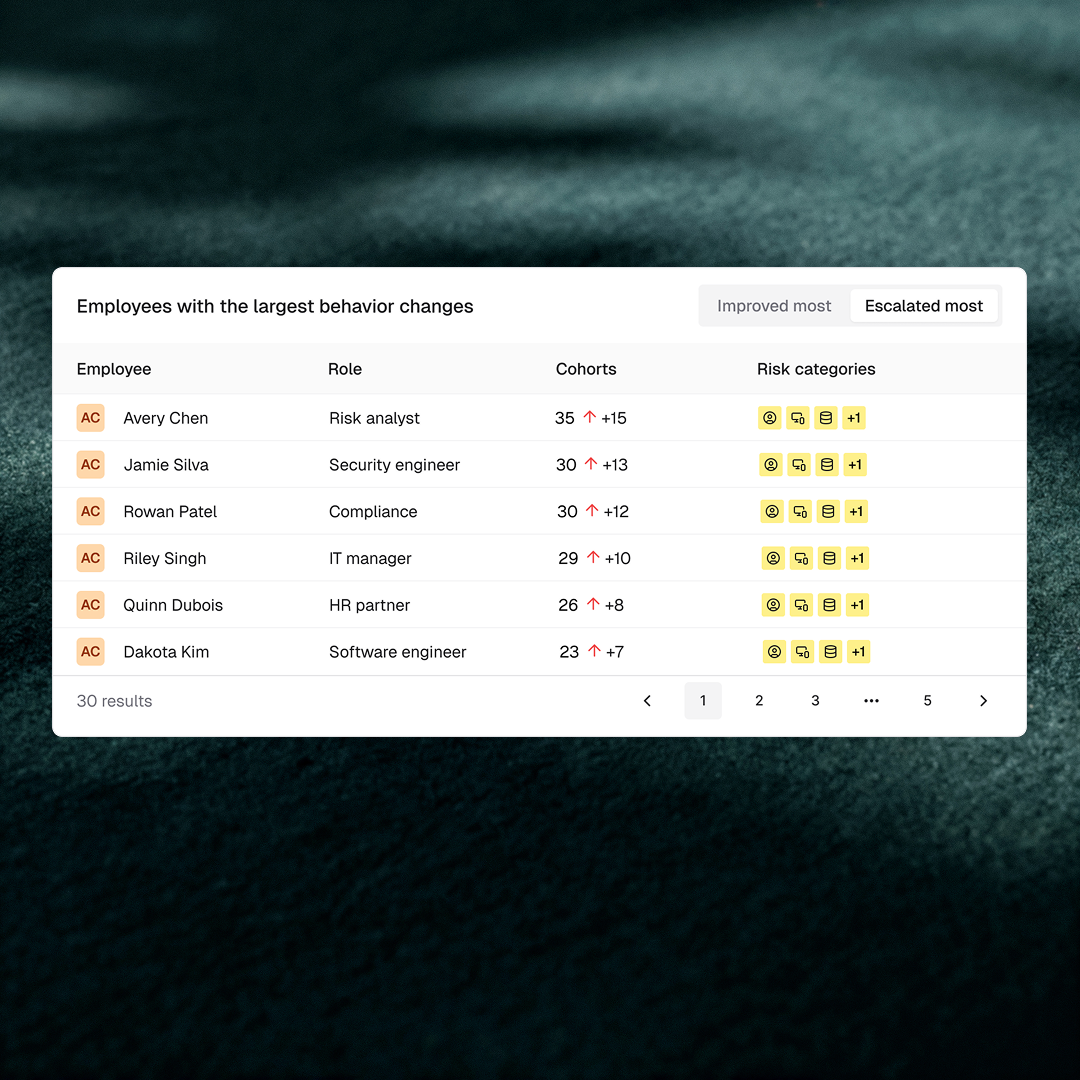
Organization View has moved from a high-level scorecard to a full drill-down tool. Admins can now click into any employee to see their complete risk profile — cohort memberships, training history, phishing results, and feedback sentiment. Managers can filter to their direct reports or full reporting chain and watch summary metrics update in real time. A new admin settings panel controls what different roles can see, keeping sensitive risk data appropriately gated without sacrificing visibility for the people who need it.
What’s new
- Employee drill-down panel — Click any employee row to see their cohort memberships (risky behaviors, affinity groups, exited), training and engagement history, phishing simulation results, and feedback sentiment — all in one place.
- Cohorts column — A new column in the Org View table shows at a glance how many cohorts each employee belongs to.
- Manager filter with indirect reports toggle — Scope the view to any manager’s direct reports, or expand to their full reporting chain with a single toggle.
- Department and status filters that update summary metrics — Filtering by department or employee status now refreshes the summary numbers at the top of the page, not just the rows in the table below.
- Admin settings panel — Show or hide the phishing and training sections, gate risky-cohort details from manager-level access, and choose which columns appear on-screen and in CSV exports.
Why it matters
Security awareness programs stall when the people running them can’t quickly answer two questions: who is at risk, and where are they in the org? The previous Org View gave summary metrics but couldn’t pinpoint individual exposure or slice results by team. Managers had no way to see their own team’s numbers, and admins had no control over what sensitive data each role could access. These aren’t UX inconveniences — they determine whether a security program can demonstrate measurable progress at the team level and whether report-outs to department heads are credible.
The updated Org View addresses this directly. Department-level filtering that actually moves the summary numbers gives admins data they can put in front of a department head. The manager filter with indirect reports toggle lets a security team give managers scoped visibility into their own team’s risk posture without opening up the full org view. For organizations in financial services or healthcare where role-appropriate data access is itself a compliance requirement, the admin settings panel provides the guardrails to make that access defensible.
How to access it: Navigate to Organization View in the Fable platform. The drill-down panel opens when you click any employee row. Admin settings are accessible from the settings icon in the top right of the view.